MSBuild Sidekick v3 Beta is updated to work with .NET 4.0 RC. Get it here!
March 22, 2010
| MSBuild Sidekick v3 is updated for RC | ||||
|
|
||||
| Team Foundation Sidekicks 2010 updated for RC | ||||
|
We have updated the Sidekicks to work with RC build of Visual Studio and Team Foundation Server 2010, the updated version can be downloaded here. The updated version have the same feature-set as described in the previous post. For RTM, the plan is to update Sidekicks to expose additional functionality new to 2010; if you have any additional wishes now is the time for the feedback – drop us an email at tfs_at_attrice_dot_info. |
||||
February 6, 2010
| Debugging Team Build with MSBuild Sidekick | ||||
|
MSBuild is powerful general purpose build engine, but what if you have a dedicated build server running Team Foundation Server Build? Did you know that you can execute Team Build projects locally and even debug them with MSBuild Sidekick? In this post we shall show how to do that in three simple steps (for Visual Studio Team Foundation Server 2008). Prior to debugging you need to know about several limitations desktop build has comparing to Team build running on the server. From MSDN article ”How to: Build Team Projects on a Desktop”:
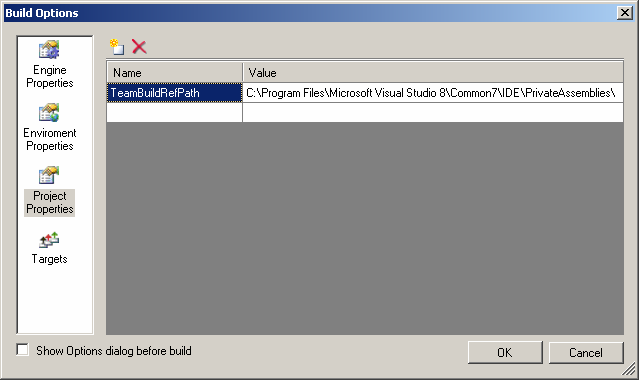
1. Follow the directions in the article to get you all prerequisites for building Team Build projects locally in order. 2. Open local copy of Team Build project file from previous step with MSBuild Sidekick and define TeamBuildRefPath property in “Project Properties” pane. To do so access “Build” -> “Build Options” menu item, and then click “Project Properties” icon at the left pane and add TeamBuildRefPath property with its value set to “C:\Program Files\Microsoft Visual Studio 8\Common7\IDE\PrivateAssemblies\” (or different drive where you have VS 2008 installed).
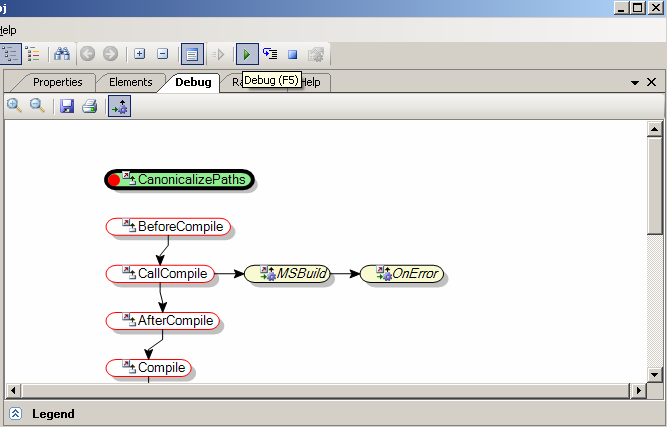
Reload project by clicking “File” -> “Reload”. A few warnings you still see do not affect further debugging. 3. Your Team Build project is now ready for debugging. You may start debugging by clicking Debug toolbar button or pressing F5 key.
You can learn more about debugging and how to use it efficiently from our previous posts “How to debug step-by-step with MSBuild Sidekick” and “How to review Properties & Items while debugging with MSBuild Sidekick”. |
||||
January 27, 2010
| MSBuild Sidekick v3 Beta is available! | ||||
|
We are happy to announce a release of MSBuild Sidekick v3, supporting full range of MSBuild versions from 2.0 to 4.0. Using v3, you will be able to experiment with new MSBuild features available in .Net 4.0 Beta 2 and Visual Studio 2010 Beta 2. Download and try this new version right now! You don’t need to uninstall previous MSBuild Sidekick version, and no license is required for the beta (the beta expires on 01 May 2010). Runtime .Net 4.0 Beta 2 is required. It’d be great if you email us about your user experience, found bugs and new feature requests. Final version MSBuild Sidekick v3 will be released after Visual Studio 2010 RTM. |
||||
January 3, 2010
| Team Foundation Sidekicks for 2010 available | ||||
|
As year 2010 rolls in, Team Foundation Sidekicks for Beta 2 release candidate of Visual Studio and Team Foundation Server 2010 is available! The release functionality is mainly identical to that of version 2.4 for 2005/2008, with the exception of the following: For 2010 we still supply both stand-alone client application and Visual Studio integration package; the latter uses VS 2010 extension registration mechanism and is now available through VS Extensions Manager. Please note that since object model API for 2010 release is still being finalized, we did not include any new features in the release for beta 2, relying instead on API backward compatibility (on which TFS team did an excellent job allowing us to provide same features as in 2008 with minimum changes). But we do plan on supporting TFS 2010 new features in our utilities; if you feel strongly about any features or want to provide other feedback, feel free to comment on the blog or reach us at tfs_at_attrice_dot_info. |
||||
November 12, 2009
| Team Foundation Sidekicks 2.4 release | ||||
|
We are proud to announce new Team Foundation Sidekicks release. With this release we conclude support for Visual Studio/TFS 2005 & 2008; from now on any future releases will target VS/TFS 2010. Sidekicks version for 2010 (based on Beta 2 bits) may be expected by the end of 2009. The release 2.4 includes a relatively large number of bug fixes as well as couple of new features. Features
Bug fixes
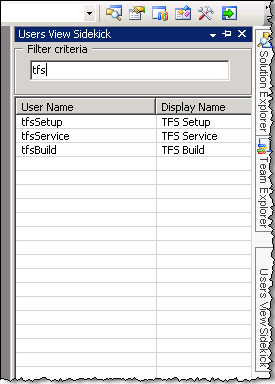
Let’s conclude with short description of new Users View Sidekick. Sidekick works around known limitation in TFS version control, where it displays only user names for item history or other version control dialogs. In some corporate environments user names tend to follow cryptic conventions set by IT which are completely unrelated to actual user first and last name (such as GERWA12N etc.). In such scenarios, Users View Sidekick would allow you searching for actual user display name using AD user name.
Caveat that applies to the usage of Users View Sidekick – retrieving user names through TFS OM API may potentially take quite a long time. |
||||
May 15, 2009
| How to review Properties & Items while debugging with MSBuild Sidekick | ||||
|
In the recent post we described the basics of debugging typical MSBuild project. In this post we shall touch upon important feature of MSBuild Sidekick debugger – namely inspecting Property and Item values during debugging with Globals and Autos windows. The walkthrough below will show how to review Property and Item values while debugging: 1. Start debugging project in step-by-step mode (see previous post) 2. When Target/Task is selected (highlighted with bold border in Debug window) click on View > Globals Window and View > Autos Window menu.
Globals and Autos windows will appear at bottom pane of main application window. Globals window displays Property and Item values as they are evaluated during the build execution.
Autos window is similar to Globals window but displays only Properties/Items that are defined as input or output parameters for Target/Task element to be executed at the next step as you step through the project.
3. Now let’s review the data. One can use Show combo box to switch between Properties and Items view mode.
4. You may also use Filter text box to filter currently visible elements based on element name.
5. As you click on “Debug Step” button and debug step-by-step you may see that Properties/Items that have been changed on previous step are highlighted in red.
|
||||
April 22, 2009
| How to debug step-by-step with MSBuild Sidekick | ||||
|
Have you ever tried to debug MSBuild project? If you did, in all probability you had to resort to introducing extra Message tasks into the project to output status during project execution; and then execute build and review the logs time after time to identify the problems (perhaps adding more Message tasks as you proceed). Now you can debug your projects without ever adding extra “Message” tasks while reviewing build execution in real time – jut use MSBuild Sidekick debugger and resolve problems in your builds in no time. In this post we shall show how to debug typical C# console project with MSBuild Sidekick. 1. Create new C# Console Application project with Visual Studio and open the project with MSBuild Sidekick. 2. Click Debug Step button (or press F11 key) to start step-by-step debug.
3. You can see now build execution order in Debug Window that should appear automatically. You may also open Debug Window by clicking on View -> Debug Window menu item.
5. To stop build execution on a specific Target\Task you may set breakpoint on it. To set breakpoint for Target\Task open right-click context menu and choose Toggle Breakpoint item. 6. Target\Task with breakpoint becomes marked with red circle.
8. Once build execution reaches Target\Task with breakpoint set, MSBuild Sidekick will switch into step-by-step debug mode. Current Target/Task will be highlighted with bold border around it in Debug window.
|
||||
April 8, 2009
| How to use MSBuild Extension Pack tasks with MSBuild Sidekick | ||||
|
One of the most exciting and widely accepted projects in MSBuild community is MSBuild Extension Pack tasks. MSBuild Extension pack provides a collection of over 240 MSBuild tasks you may use in your MSBuild projects for free! In MSBuild Sidekick v 2.3 we introduced integration with MSBuild Extension Pack tasks; now you can add, edit properties and view online help for all the MSBuild Extension Pack tasks in the Sidekick application. To illustrate these features let’s create new MSBuild project in MSBuild Sidekick v2.3 and add a MSBuild Extension Pack task to it. Note: you should have MSBuild Extension Pack properly installed; it is available at http://www.codeplex.com/MSBuildExtensionPack. 1. Right click on Target element and choose “Add Task” from context menu.
2. In the “Add Task” dialog choose “Custom Tasks” tab – you should see there all the MSBuild Extension Pack task classes.
3. Then click on task class you’re going to use in your project, click “Add” button and click “Close” to leave dialog window.
4. Choose relevant task action in TaskAction property drop-down for your new task.
5. Once task action is selected, the task parameters list will be filtered automatically, so that only task parameters relevant for the selected task action will be displayed. Required input parameters will be marked with asterisk (see Format parameter on the screenshot above). 6. To view online help for the selected MSBuild Extension Pack task navigate to Help window.
|
||||
March 14, 2009
| MSBuild Sidekick v 2.3 is released | ||||
|
We are happy to announce the release of version 2.3 of MSBuild Sidekick! Many of you would remember “How would you spend $100 on MSBuild?” poll published on MSBuild Team Blog. MSBuild users were asked to vote on most valuable future features in MSBuild; and while we could not improve MSBuild engine performance or add inline tasks support we did implement visual debugger for MSBuild! MSBuild Sidekick v2.3 is now the one-stop solution for all your debugging needs such as stepping through the build, inspecting locals and setting breakpoints. The new features in MSBuild Sidekick v2.3 are:
Please note, that for all registered users the upgrade to new version is free of charge; otherwise the license can be purchased online. Please see product page for additional information; also make sure to have a look at walkthroughs detailing the application usage and the user manual. |
||||